How to track document expiry dates without manually chasing subcontractors
By Simone Rabelo · 8 September 2026
Learn how to track subcontractor document expiry dates, automate renewal reminders and avoid discovering expired certificates too late.
Collecting a subcontractor's document is easy.
Remembering to collect the replacement twelve months later is harder.
That is why expiry tracking often becomes one of the most frustrating parts of managing subcontractor documentation.
A certificate gets emailed to somebody.
The expiry date is copied into Excel.
A calendar reminder might be created.
Months pass.
Then one of three things happens:
- someone remembers to check the spreadsheet;
- the subcontractor sends a replacement without being asked; or
- somebody discovers that the document expired two weeks ago.
None of those is a particularly good system.

Photo 01
Why expiry tracking becomes difficult
An expiry date is simple data.
The workflow around it isn't.
Imagine that one certificate expires on 30 November.
Ideally, you don't want to discover this on 1 December.
You may want to start the renewal process weeks beforehand.
That means somebody needs to:
- identify the approaching expiry;
- contact the correct subcontractor;
- explain which document needs replacing;
- follow up if there is no response;
- receive the replacement;
- review it;
- update the status;
- preserve the old document; and
- stop further reminders once the issue has been resolved.
Multiply that across dozens or hundreds of documents and the amount of routine administration becomes substantial.
Why spreadsheets are particularly weak at this
Excel can calculate whether a date is approaching.
It cannot collect the replacement for you.
A typical expiry spreadsheet might contain:
| Subcontractor | Document | Expiry | Status |
|---|---|---|---|
| ABC Electrical | Insurance | 30 Nov | Expiring soon |
| Northside Ltd | Registration | 18 Jan | Current |
| Smith Services | Certificate | 02 Aug | Expired |
That gives you visibility.
But somebody still needs to turn the red or amber cell into action.
They need to open Outlook, find the contact, write the message and follow up later.
Then, once the document arrives, they need to save it somewhere and return to the spreadsheet.
The spreadsheet is therefore not really managing expiry.
It is reminding a person to manage expiry.

Photo 02
A better expiry workflow
A document-management workflow can use the expiry date as a trigger.
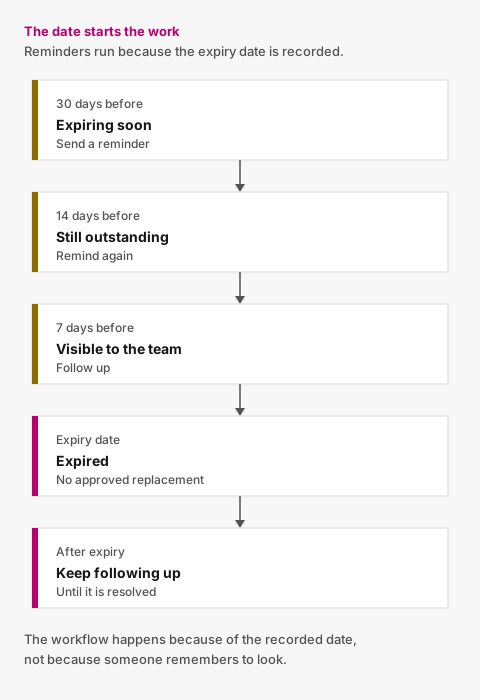
Figure 01
For example:
30 days before expiry
The document becomes Expiring soon.
The subcontractor receives a reminder explaining which document needs replacing.
14 days before expiry
If no replacement has arrived, another reminder can be sent.
7 days before expiry
The outstanding requirement remains visible to your team and the subcontractor can be reminded again.
Expiry date
If no acceptable replacement has been approved, the requirement becomes Expired.
After expiry
Follow-up can continue at an appropriate interval until the requirement is resolved.
The exact schedule will depend on the organisation.
The important point is that the workflow should happen because of the recorded expiry date—not because someone happened to remember it.
Stop reminders when somebody has already responded
This is a small detail that makes a big difference.
Suppose a subcontractor's insurance expires next week.
You send a reminder.
They upload the replacement that afternoon.
Your team hasn't reviewed it yet.
Should the system email them again tomorrow saying the document is still expiring?
Probably not.
The useful status is now:
Replacement received — awaiting review.
The problem has moved from the subcontractor's queue to yours.
Expiry automation should understand that.
Otherwise, automation simply becomes a faster way to send annoying emails.
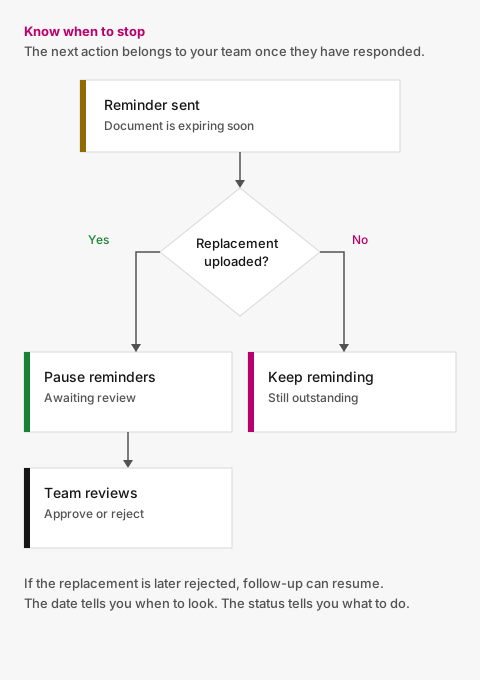
Figure 02

Photo 03
Separate the document from the requirement
This is one of the most useful ways to think about expiry tracking.
The requirement might be:
Public Liability Insurance
That requirement may exist for years.
The actual documents satisfying it change over time.
For example:
2025 certificate
- Approved
- Expired 30 November 2025
2026 certificate
- Approved
- Expires 30 November 2026
2027 certificate
- Submitted
- Awaiting review
You don't want to overwrite the 2025 certificate every time a renewal arrives.
The requirement stays the same.
Each submitted document becomes part of its history.
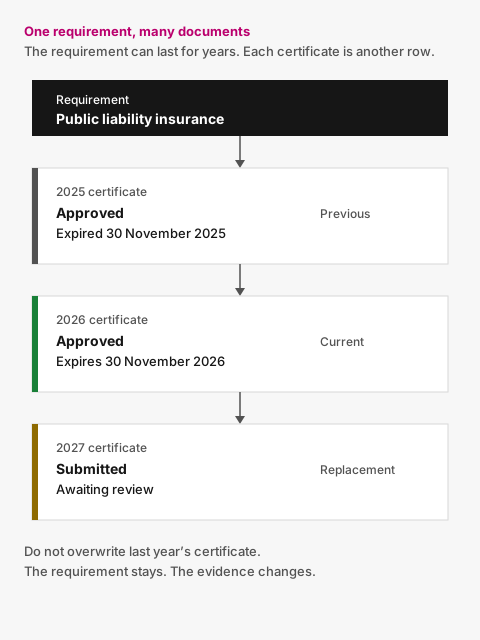
Figure 03
Track more than the expiry date
A date alone doesn't tell you enough.
For every expiring requirement, you should ideally know:
- subcontractor;
- document type;
- current approved document;
- expiry date;
- current status;
- whether a replacement has been requested;
- whether a replacement has arrived;
- whether it is awaiting review;
- when the last reminder was sent; and
- what happened to previous submissions.
That gives your team context.
Instead of seeing:
Insurance expires 30 November
you see:
Insurance expires 30 November. Reminder sent. Replacement uploaded yesterday. Awaiting review.
Those are very different situations.
Don't rely entirely on the subcontractor
Some organisations leave renewals to the subcontractor.
Sometimes that works.
But your own process should still tell you when something is approaching expiry.
People change roles.
Email addresses change.
A subcontractor may simply forget.
If keeping that document current matters to your organisation, its renewal shouldn't depend entirely on somebody outside your business maintaining a calendar reminder.
Don't rely entirely on one person inside your business either
The opposite problem is equally common.
One administrator knows where everything is.
They know which spreadsheet matters.
They know which subcontractor still hasn't sent the replacement.
They recognise the filenames.
They know which certificates were rejected last month.
That system can work surprisingly well—right until the administrator is away, changes role or leaves the company.
A shared expiry process should make the current situation visible to any authorised colleague.
What should an expiry dashboard show?
Keep it simple.
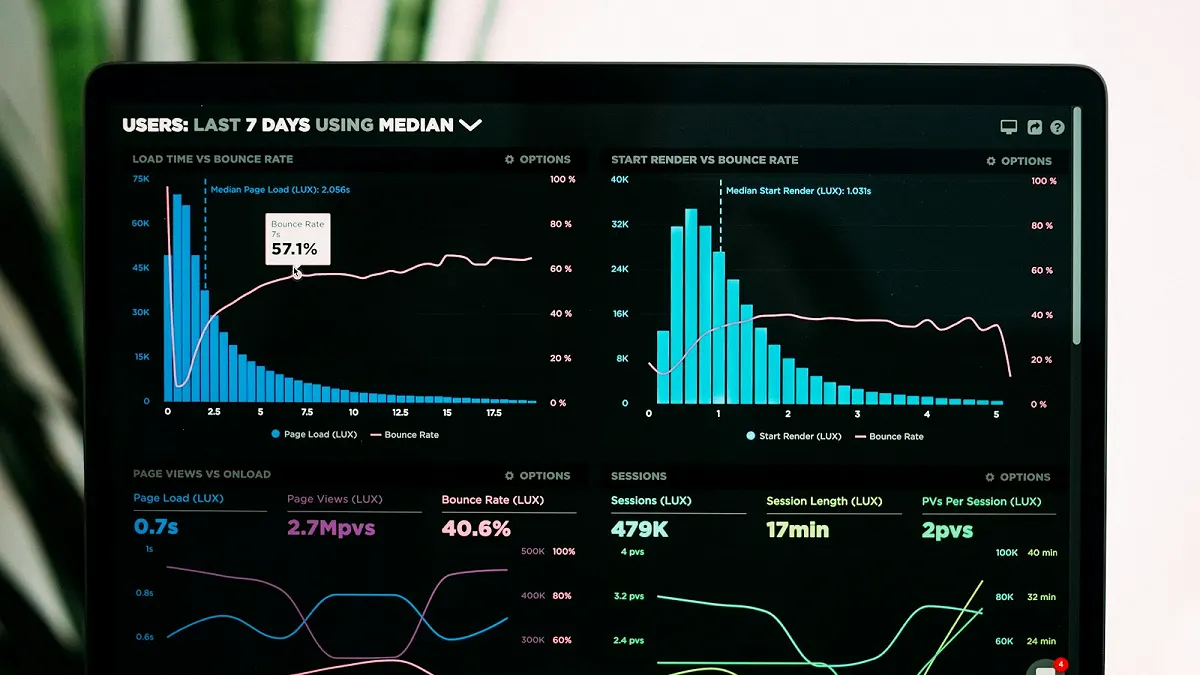
Photo 04
Your team should be able to identify:
Expiring soon
Documents approaching their expiry date.
Expired
Documents whose expiry date has passed without an approved replacement.
Awaiting review
Replacement documents that have arrived but still need a decision.
Missing
Requirements for which there is no accepted document.
The objective isn't to produce more reporting.
It's to make the next action obvious.
What automation should do
Good expiry automation removes repetitive administrative work.
It should:
- identify approaching expiries;
- change statuses automatically;
- send reminders at defined intervals;
- direct the subcontractor to the exact documents requiring attention;
- allow a replacement to be uploaded quickly;
- pause unnecessary reminders while a replacement awaits review;
- resume follow-up if necessary; and
- keep a record of what happened.
Your team should still make the important decision:
Do we accept this document?
The system handles the routine work surrounding it.
From expiry tracking to expiry management
There is a significant difference between knowing that a document expires and having a process that gets it renewed.
A spreadsheet gives you the date.
A calendar gives you the reminder.
An inbox gives you the replacement.
A shared folder gives you the file.
A proper document workflow connects all four.
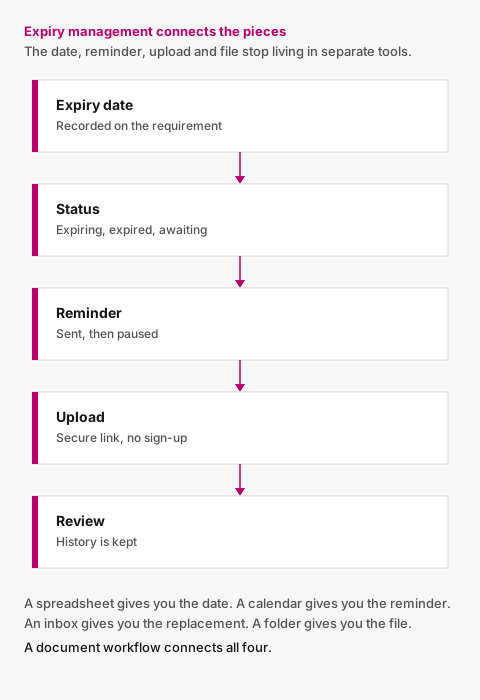
Figure 04
That is the problem Valar is designed to solve.
Valar tracks the company-level documents your organisation requires from each subcontractor, monitors expiry dates and automatically follows up when documents need attention.
When a subcontractor needs to provide something, they receive a secure upload link rather than another account to create.
When the replacement arrives, your team reviews it and the previous submission remains in the document history.
For certificate-specific workflow, see certificate expiry tracking. For the reminder rules behind the emails, see how to automate document requests and reminders.
Photo credits
- Photo 01 by Aron Visuals
- Photo 02 by Glenn Carstens-Peters
- Photo 03 by Brett Jordan
- Photo 04 by Luke Chesser
Put document tracking in one place
You define what you require. Subcontractors upload from a secure link. Your team reviews. Reminders handle the rest.